File manager
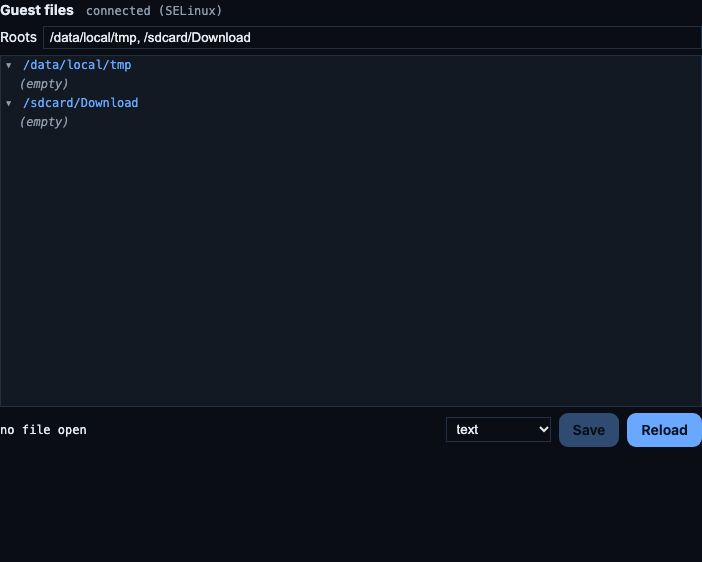
The Guest files panel, under Tools below the phone screen, shows files inside the running phone. You can open them, read them in a suitable viewer, and edit them while apps are running.
How it works, in one paragraph
A small Vetro service inside the phone (vetro-files) does the reading and writing, through the phone's own kernel, and talks to the page over a private virtual channel (virtio-vsock). Nothing touches the disk image behind the system's back, so the file system stays consistent, and a file you save keeps its owner, its permissions and its SELinux label. Every change you make is also recorded, so a replay stays identical.
The panel says connected when the service answers; it starts shortly after the system has booted.
Choosing the folders
Roots lists the folders shown in the tree, separated by commas. For the phone the default is /data/local/tmp, /sdcard/Download. Some useful places:
| Folder | What is there |
|---|---|
/data/data/<package> | an app's private files: databases, preferences, caches |
/sdcard/Android/data/<package> | an app's files on shared storage |
/sdcard/Download | downloads and files you put there |
/data/local/tmp | a scratch folder for your own tests |
Type the folders and press Enter. Following the app in the foreground automatically is planned.
Private app folders (/data/data/...) belong to each app's own user: the service runs with the rights of this development build, so it can read and write them.
Browsing
Click a folder to open it; click again to close it. Open folders are watched: when an app creates, changes, renames or deletes a file there, the tree updates by itself within a moment. Hover over an entry to see its permissions, owner, size, link target and SELinux context.
Viewing
Click a file to open it. Vetro picks a viewer from its content, and you can change it with the menu:
- text, JSON and XML;
- SharedPreferences: Android's preference files (XML with a
<map>root) are shown as a table of names, types and values; - SQLite: tables and rows of a database (the first 500 rows of a table), including changes still in its write-ahead log (
-wal); - image: PNG, JPEG, GIF, WebP, BMP;
- hexadecimal: any file (the first 256 KiB).
If the file changes inside the phone while it is open, the viewer reloads it by itself (or warns you, if you have unsaved changes). Reload reads it again at any time.
Editing
- Text, JSON, XML, hexadecimal: edit in place, then click Save. JSON and XML are checked before writing. The file is replaced in one step (an atomic write), so an app never reads a half-written file.
- SharedPreferences: change names, types and values in the table, add or remove entries, then Save. Values are checked the way Android reads them back, and the file is written in the same form Android writes it.
- SQLite: click a cell to change it, Insert row to add one, ✕ to delete one, or SQL… for your own statement. Each time the panel shows the query first; Run in guest runs it inside the phone with the phone's own SQLite, then the table is read again.
Apps usually read their preferences and databases when they start: after an edit, close and reopen the app (for example am force-stop <package> on the adb line, then open it again) to see the effect.
Creating, deleting and moving files
The panel edits files that exist; creating, deleting, renaming, uploading and downloading files from the panel are not available yet. For simple cases, use the adb line, then open the file in the panel:
echo '{}' > /data/local/tmp/test.json    # create a file
rm /data/local/tmp/test.json             # delete it
cp /sdcard/Download/a.db /data/local/tmp/ # copy one
To copy text out of the phone, open the file in a viewer and copy it from there.