Network inspector and timeline
Everything the phone sends and receives passes through Vetro's own network card, so Vetro sees it without installing anything in the phone and without the apps being able to notice. The Network and Timeline tabs show it: open Tools, the small toggle below the phone screen, to see them.
What the phone's network is
The phone believes it is on a normal network (address 10.0.2.15, with a gateway and a DNS server). Behind it, Vetro's own network stack, inside the emulator, answers it, and from there the traffic goes one of two ways.
Online, with Vetro Connect. While Vetro Connect runs on your computer, the phone reaches the internet through it: a small program that opens the real connections, because a browser page cannot. Apps load, web pages open.
- Only web traffic leaves: connections to ports 80 (HTTP) and 443 (HTTPS), and name lookups (DNS), which Vetro Connect answers from your computer's own DNS settings. Other ports, other UDP traffic (such as QUIC) and private or local addresses are refused, so apps fall back to ordinary HTTPS.
- HTTPS stays encrypted from the app to the real server: Vetro Connect only passes encrypted bytes along. It keeps no record of the contents or of the sites, only counters (how many connections, how many bytes).
- Everything still passes through Vetro's network card first, so the Network and Timeline tabs work exactly as before.
Offline (the sinkhole), when Vetro Connect is not running. Nothing leaves your browser:
- name lookups get made-up addresses, so the phone can connect to them;
- plain HTTP connections to port 80 get an empty "200 OK" answer;
- other connections are accepted and recorded, but nothing answers them like the real server would; HTTPS connections do not get past the start of the encrypted handshake.
This keeps the phone completely isolated, which is useful for analysis; apps that need their server will show an offline or error message. Add ?net=offline to the app's address to start that way even while Vetro Connect is running.
The Network tab

Right after start-up you will typically see the system checking whether it is online (its connectivity check): answered by the real server when the phone is online, by the sinkhole when it is offline.
Each row is one request: when it started, the method, the host and path, the response status, the sizes of the request and the response, the body type, the duration, and a waterfall bar that shows it in time.
- Filter by text (method, host, path, status or type), or with the menus: method, status class (2xx, 3xx, 4xx, 5xx, no response) and body type (JSON, form, multipart, protobuf, text, binary).
- Click a row to see its details: the timing of each phase, the headers, and the bodies decoded when Vetro recognises them (JSON, forms, multipart, protobuf without a schema, text), or as hexadecimal.
- Export HAR downloads the requests as a HAR 1.2 file, which browsers' developer tools and many other tools can open.
- Export pcapng downloads every network frame the phone exchanged, for Wireshark.
- Clear empties the list.
The line on the right counts requests, DNS questions, TLS connections and frames.
Vetro also has hooks that read HTTPS traffic in clear text inside the TLS libraries, from the outside. They work in the command-line tools; bringing them to the page, together with a TLS endpoint for the sinkhole, is still in progress.
The Timeline tab
The timeline ties what you did to what happened next.
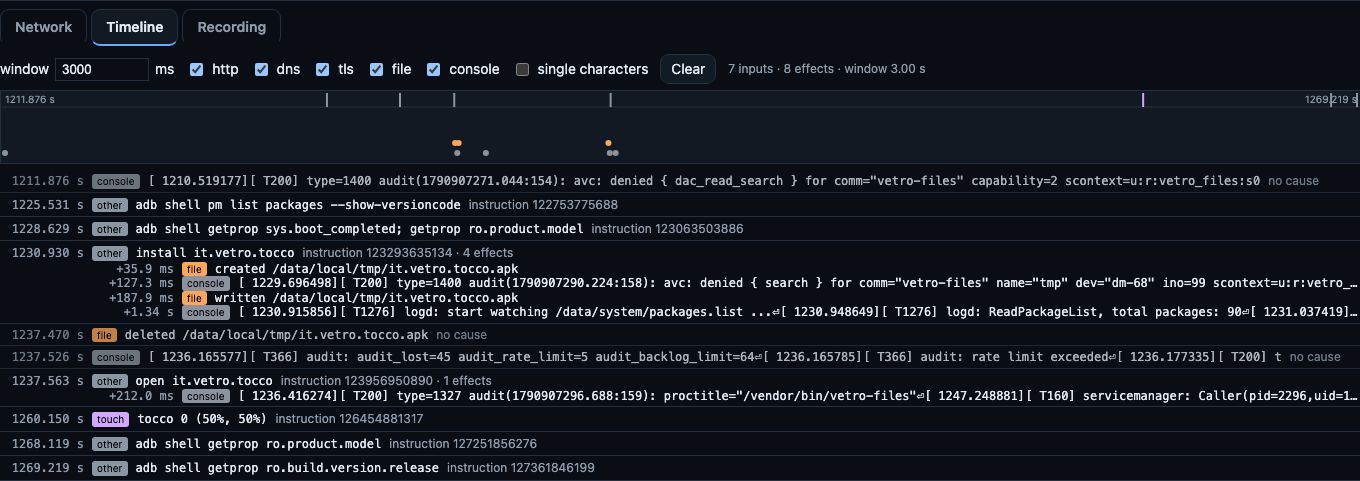
- Inputs are your actions: taps, keys, the power button, adb commands, installing an APK, lines typed in the console, saving a file from the file manager.
- Effects are what the phone did: HTTP requests, DNS questions, TLS connections, files created or changed (in the folders open in the file manager), console output.
Time on the timeline is the phone's own clock (guest time), which advances with the instructions the phone executes, so it is the same on a fast and a slow computer.
Each effect is attributed to the last input that came before it within the window (3 seconds by default; you can change it). This is a simple rule, not a proof: a request an app makes by itself, on a timer, may land on whatever you did just before it.
- The checkboxes show or hide each kind of effect; single characters also shows each key you typed (hidden by default, since single keys rarely cause network traffic).
- Click a request on the timeline to open it in the Network tab.
- go here appears on inputs covered by a recording: it replays the recording up to that moment (see Record and replay).
- Clear empties the timeline.