Getting started
What you need
- A desktop browser based on Chromium: Google Chrome or Microsoft Edge, a recent version. Other browsers are not supported yet (see Troubleshooting).
- A computer with at least 8 GB of memory. The phone gets 2 GiB of its own, and the tab needs close to 3 GiB in total while it runs.
- About 1 GB of free disk space for the saved phone, plus room for the apps you install.
- A good connection for the first visit: it downloads about 0.7 GB once.
Phones and tablets cannot run Vetro yet: it needs a desktop browser.
If the browser cannot run Vetro (it lacks WebAssembly SIMD, for example), or may not run it well (another browser, a phone, too little memory), the page says so in a box above the screen instead of failing silently.
Open the site
Go to 1vcian.me/Vetro and click Launch Vetro. That is all: there is nothing to choose. The phone starts by itself, with the settings that suit most people (the current system image, the light landscape screen, one processor core).
The app's own address, 1vcian.me/Vetro/app/, does the same: bookmark it to go straight to the phone.
The first visit
Booting the phone system from nothing takes tens of minutes on an emulated processor, so Vetro does not make you wait for it. Instead, the first start downloads a ready-made snapshot: the whole machine saved at the home screen, about 0.7 GB.
- One line at the top of the page says what is happening: how much of the download is done (for example "Downloading the phone: 120 MiB of 700 MiB, about 30 s left"), then "Starting the phone…", then Ready.
- Every piece is checked (SHA-256) before it is written, so a damaged download is never used.
- If the download stops (a closed tab, a lost connection), reload the page: it resumes where it stopped.
- When the download is done the machine is restored and the home screen appears. In our tests the phone was ready about 25 seconds after the page opened, with a fast connection.
The phone's disk is not downloaded as a whole: Vetro reads the pieces the system needs, when it needs them, and keeps them. The first time you open an app you may notice a short wait while its files arrive.
Later visits
From the second visit on, nothing large is downloaded again. The machine resumes from the snapshot saved in your browser, usually in a few seconds, and you find the phone as you left it at the last save: installed apps, settings and files included.
Vetro saves the machine by itself at the home screen and after you install an app. See Snapshots and saved data.
The page
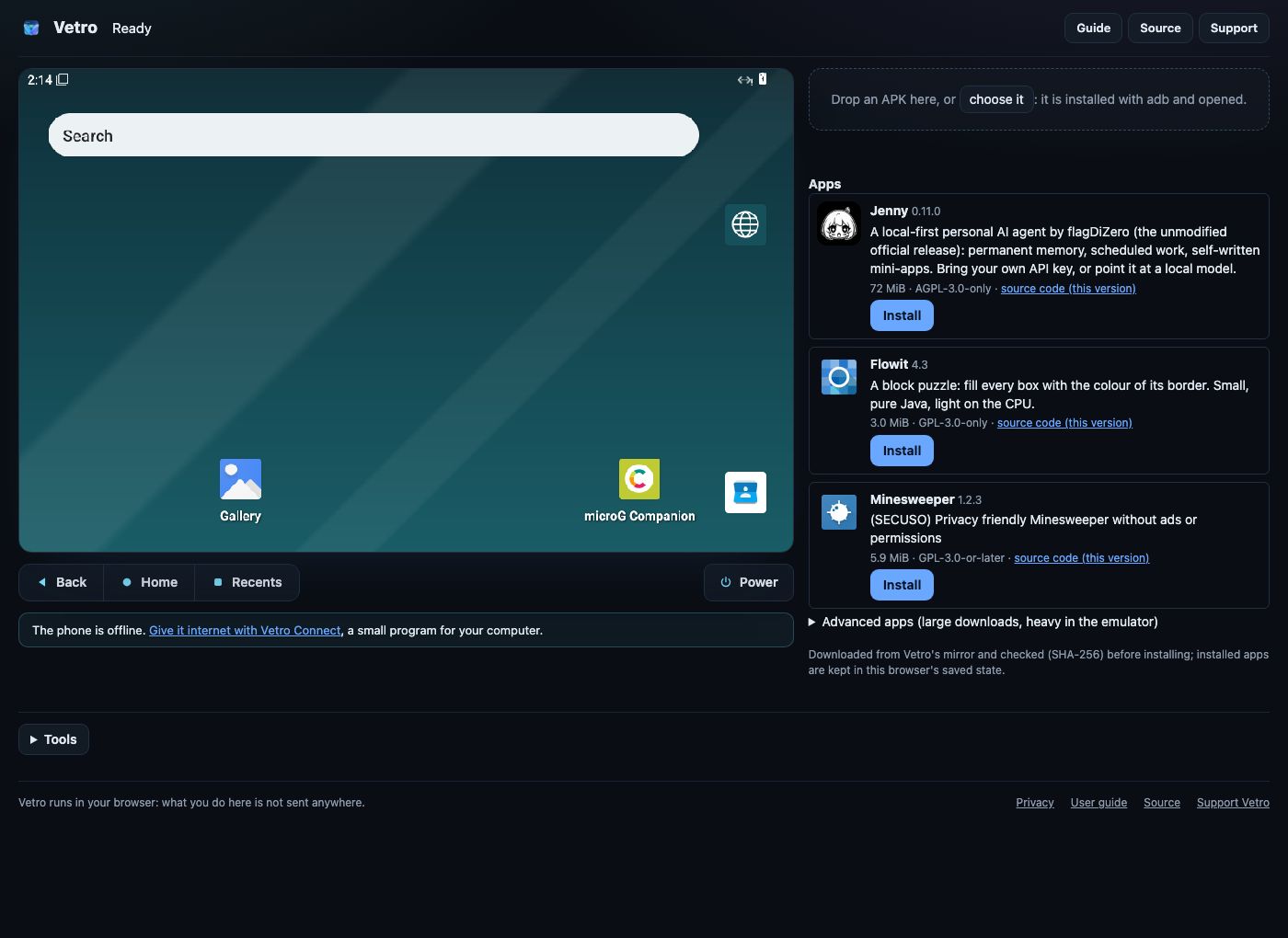
The page shows only what you need to use the phone:
- the phone screen, with the Power button below it (Using the phone);
- the Apps panel next to it: suggested apps to install with one click, and the box where you can drop an APK file (you can also drop it on the screen);
- the progress line at the top.
Everything else is under Tools, a small toggle below the screen, closed until you open it:
- Save state and Delete saved data (Snapshots and saved data);
- the boot phases, the adb connection and an adb command line (Using the phone);
- the console: the system's log, as a serial cable would show it;
- Guest files: the file manager;
- the analysis tabs: Network, Timeline and Recording (Network inspector and timeline, Record and replay).
The Linux demo
The landing page also links a small Linux demo (app/?os=linux): a Linux 6.18 system with a BusyBox shell, ready in a few seconds. Its shell is the console next to the screen: click it and type commands.
For developers: every option
Adding ?advanced=1 to the app's address shows the full setup form, with every option the defaults hide: the system (AOSP or the Linux demo), the image version or any manifest.json, the device profile, cold boot instead of the ready-made snapshot, full animations and blurs, RAM, screen size, cores, JIT, network, storage options and, for Linux, the kernel, initramfs, disk and command line. Tools are open in this mode, and nothing starts until you click Start.
The same options work as address parameters on the normal page, which then starts by itself with them, for example ?profile=phone, ?cold=1, ?cpus=2, ?gpu=swiftshader or ?graphics=full.
The system's screen is drawn by your browser's graphics card (WebGL2). On a browser without WebGL2 the app draws it on the emulated processor instead, by itself; it is slower, but everything works. ?gpu=swiftshader asks for that on purpose.
A cold boot boots the system from nothing instead of downloading the snapshot. It downloads only the boot images (about 136 MiB) and the disk pieces the system reads, but it takes about 45 minutes before the home screen. The boot phases under Tools show each one as it happens (kernel, init, zygote, graphics, system_server, boot finished, home screen). When the home screen is up, Vetro saves the machine, and later visits resume from there as usual.